It has been said that a True Man (or Woman!) doesn’t need to read instructions! This is surely true of all flat pack furniture, that new 50 inch TV and of course, software installations. Except, it usually isn’t. The true man/women usually becomes a broken man/woman when things don’t work as expected, having to resort to the manual to figure out what went wrong.
Here are the top few pointers people often forget when installing.
Unblock the Zip
This annoying feature of windows, is a sys admins nightmare. This simple step is often easy to overlook and doesn’t have an immediately noticeable effect when installing Gemini, but it is vitally important! The unblock process is meant to offer users a level of protection against malware and the like by blocking files in a zip. Files, like what we store in the apps zip folder, for example. So when you deploy Gemini, you are actually deploying the blocked zipped apps and it should be no surprise when they do not extract properly. Please remember to unblock the zip as the first step after downloading to avoid these issues.

Reference https://docs.countersoft.com/using-the-zip-file/ and the NOTE in red right after the download link.
Setting up IIS
I personally prefer to see Gemini installed in a dedicated website, rather than a virtual directory within the “Default Website”. This is because it has another layer of dependency and changes to the Default Website can affect the Gemini application. One thing often asked is why do scheduled reports not run or repeated tasks not get repeated, especially over holiday seasons. What you need to remember is if Gemini is not running, neither are any of the scheduled tasks within Gemini. It is recommended, if you don’t have a high usage, to set the Application Pool to be AlwaysRunning. This is set in the Advanced settings of the AppPool:

With the AppPool always running, your tasks and reports will flow as expected.
Also, if you’re running TFS and using the Gemini App, you will also need to configure the use of 32-bit applications.
Folder Permissions
Usually, the default folder permissions to view the website is usually sufficient for most applications. However, Gemini lets you perform some sys admin tasks which require some elevated permissions. For example, if you want to manage the Taxonomy through the UI, you need to be able to write to the files which store the information. Also, if you want edit and duplicate project templates within Gemini, it will need write permissions. This step is often overlooked in the deployment phase and it is not until much later when one of these actions is performed that the problem arises. At this point, thoughts of it being a deployment issue have left the mind, if even the error occurs to the sys admin user and not some poor unsuspecting end user.
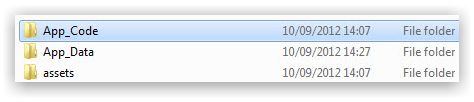
These are the folders which require full control by the Everyone group.
Reference https://docs.countersoft.com/using-the-zip-file/ Step 7
Moving Server
When people migrate Gemini from one server to another, there is often an omission in the deployment plan to copy the required files from the old server to the new. People assume all the data is stored in the database, so they merely need to download the latest version, point that at the database, and off they go. This may appear to be successful, but people will quickly realise that there are a number of missing icons and taxonomy dotted about. Projects using the default templates will usually be immune as the new installation will have the required files, it is custom templates or tweaked templates which will suffer.
It is therefore important to copy
- the Assets folder to the new server as this will contain the images and icons used.
- the App_Data\Templates folder which stores the information on the templates, standard (including your customisations) and custom templates you’ve created.
- the App_Data\Languages folder which holds any custom translations and/or amendments to the existing translations you’ve added to Gemini.
It is also unwise to move server AND upgrade at the same time. If you run into issues you won’t know whether it is the server or the upgrade which has the problem. Move the existing application, then after week or so, do the upgrade. If you have to have them done at the same time, then install the existing site on the new server pointing to a copy of the database. Check it works, then upgrade it and check it works. When you are happy, then do the migration.
Upgrading the Database
Gemini will do all that is necessary to keep the database up to date. When the application starts, it will check the version in the database against what it is expecting and if it needs to upgrade, it will run the SQL scripts necessary. You will run into problems if you try and upgrade the database yourself while the application is running. Don’t both try and update the database at the same time!
The scripts are really provide purely for those environments which are super locked down and the Gemini SQL user does not have permissions to alter tables, create tables etc.
Changing to Windows Active Directory
This is relatively simple, but some important considerations are required. Firstly, the usernames must match the domain user. So if you log in as DOMAIN\BobSmith then you’re Gemini username should match this. You may have to update the values in the database to achieve this (it is a sys admin task which is why it is not available in the UI) The password is not important, but you should leave one normal Gemini user in the Gemini Admins group in case you need to revert back to forms authentication. This user can be disabled for licencing purposes, but activated when needed via the database.
Having got your users renamed, make the following changes:
- in IIS, change the authentication modes to enable Windows Authentication and disable Forms and Basic / Anonymous access
- In the Web.config file,
- change authentication mode from Forms to Windows
- change <customErrors mode=”On” to mode=”Off”, at least temporarily. This means you will see any errors and give you a clue in fixing.
- Recycle the app pool (which should happen on web.config change, but best to be sure!)
Try and log into the site.
Comments
Post a Comment